
Email deliverability
Improve inbox placement by connecting your domain and following sending best practices.
Deliverability is whether your emails land in inboxes or get filtered to spam. Even a well-written broadcast won't work if it never reaches your clients.
Two things matter most: authenticating your sending domain and maintaining a healthy list.
Connect your email domain
By default, Arketa sends emails from a shared domain. Connecting your own domain — like hello@yourstudio.com — tells email providers the messages are genuinely from you, which significantly improves deliverability.
How it works
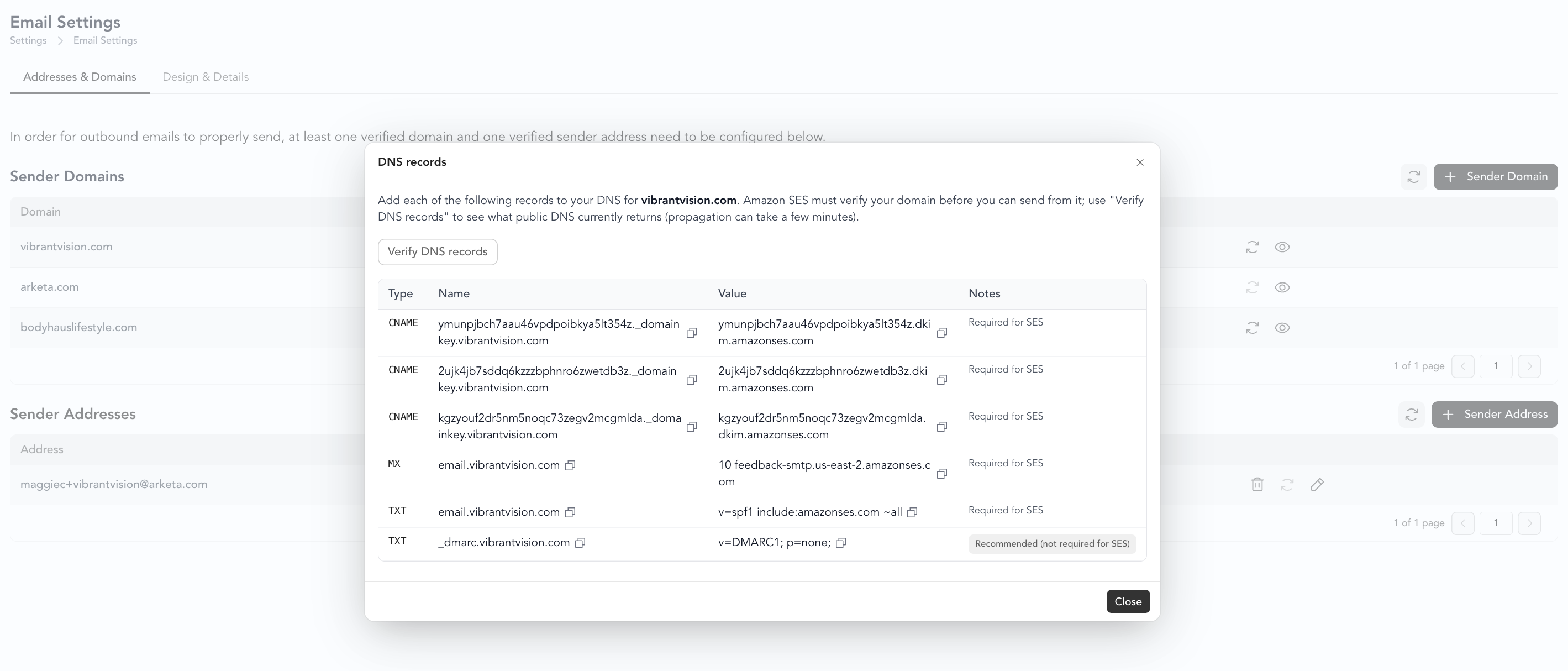
Arketa uses Amazon SES to send emails on your behalf. When you connect your domain, you add DNS records to your domain registrar that prove you own the domain and authorize Arketa to send from it.
You need:
- A business email address on a domain you own (e.g.,
hello@yourstudio.com) - Access to your domain registrar's DNS settings (GoDaddy, Namecheap, Google Domains, etc.)
You must own the domain to complete this setup. If you only have a Gmail or Yahoo address, you'll need to purchase a domain or a Google Workspace account. Google Workspace starts at $6/month.
Add your sender domain

- Go to Settings → Email Settings
- Click + Sender Domain and enter your domain (e.g.,
yourstudio.com) - Arketa generates DNS records for you to add to your registrar
- Add the records — verification can take up to 72 hours
- Once verified, the status column shows Verified
- Add your sender address (e.g.,
hello@yourstudio.com) and you're ready to send
You can add multiple sender addresses if you want some campaigns to come from a team member's address (e.g., beth@yourstudio.com).
Adding records by registrar
Troubleshooting verification
Verification failed — Double-check that you added the records to the correct domain. You can confirm where your domain is hosted at who.is. Try re-entering the records and refreshing verification in your Arketa dashboard. If it's still failing, send a screenshot of your DNS records to support@arketa.com.
Email went down after adding records — Check that you didn't accidentally modify or remove existing DNS records. Re-add any records you may have changed.
MX/TXT name conflict — If you receive an error about a record name that already exists, try submitting a different subdomain in the Arketa dashboard.
Sending best practices
Authentication gets you in the door, but your sending habits determine whether you stay there.
Keep your list healthy
- Send only to people who opted in — purchased, booked, or signed up through your website
- Never use purchased or rented email lists; they're full of spam traps
- Remove clients who haven't engaged in 6+ months, or send a re-engagement campaign first
- Honor unsubscribes immediately (Arketa handles this automatically)
Write emails that get opened
- Use a clear, specific subject line — avoid all caps, excessive punctuation, or spammy phrases like "FREE!!!" or "ACT NOW"
- Keep a good balance of text and images — emails that are mostly images with little text are flagged by spam filters
- Don't use too many links in a single email
Warm up a new domain
If you just connected a new domain, don't blast your full list on the first send. Start with a smaller segment (your most engaged clients), then increase volume over the next few sends. This builds a positive sending reputation before you scale.
Watch your metrics
After each broadcast, check your results. High unsubscribe or bounce rates signal a list or content problem.
| Signal | What to do |
|---|---|
| High bounces (over 2%) | Clean your list — remove addresses that bounced |
| High unsubscribes (over 0.5%) | Reconsider frequency or relevance of content |
| Spam reports | Review content for spam triggers; check list quality |
| Low open rate (under 15%) | Improve subject lines; consider re-engagement or list pruning |
If clients aren't receiving emails
For clients who aren't getting transactional emails (confirmations, reminders), the issue is usually on the receiving end. Ask them to:
- Check their spam or promotions folder
- Add your sender address to their contacts
- Mark any emails from you as "Not Spam"
For Gmail users: go to Spam, search for your email address, select the messages, and click Not Spam.
For Outlook users: add your address to Safe Senders in Mail Settings → Safe and Blocked Senders.
Why an email shows as plain text with a long link instead of your logo
Sometimes a delivered email lands in the Junk folder as plain text — with a banner like "We could not verify the identity of the sender" and "We converted this message into plain text format," and your logo or images replaced by a long web address. Your email content is fine. This happens when the receiving provider (often Outlook or Microsoft) can't verify your sending domain, so it filters the message to junk and strips the formatting. Converting to plain text removes images, which is why your logo shows up as its raw link instead of the picture.
The fix is on the sending side: connect and verify your sending domain (see Connect your email domain) so providers can confirm the messages are genuinely from you. Once your domain is verified, emails render normally with your logo intact. In the meantime, recipients can move the message to their Inbox or mark it Not Spam to see the full formatted version.