Book a class
How to find and reserve a spot in a class.
You can book classes on your studio's website, through their booking widget, or in their mobile app.
Book online
- Go to your studio's website or booking page
- Find the class you want on the schedule
- Click on the class
- If you're not logged in, you'll be prompted to log in or create an account
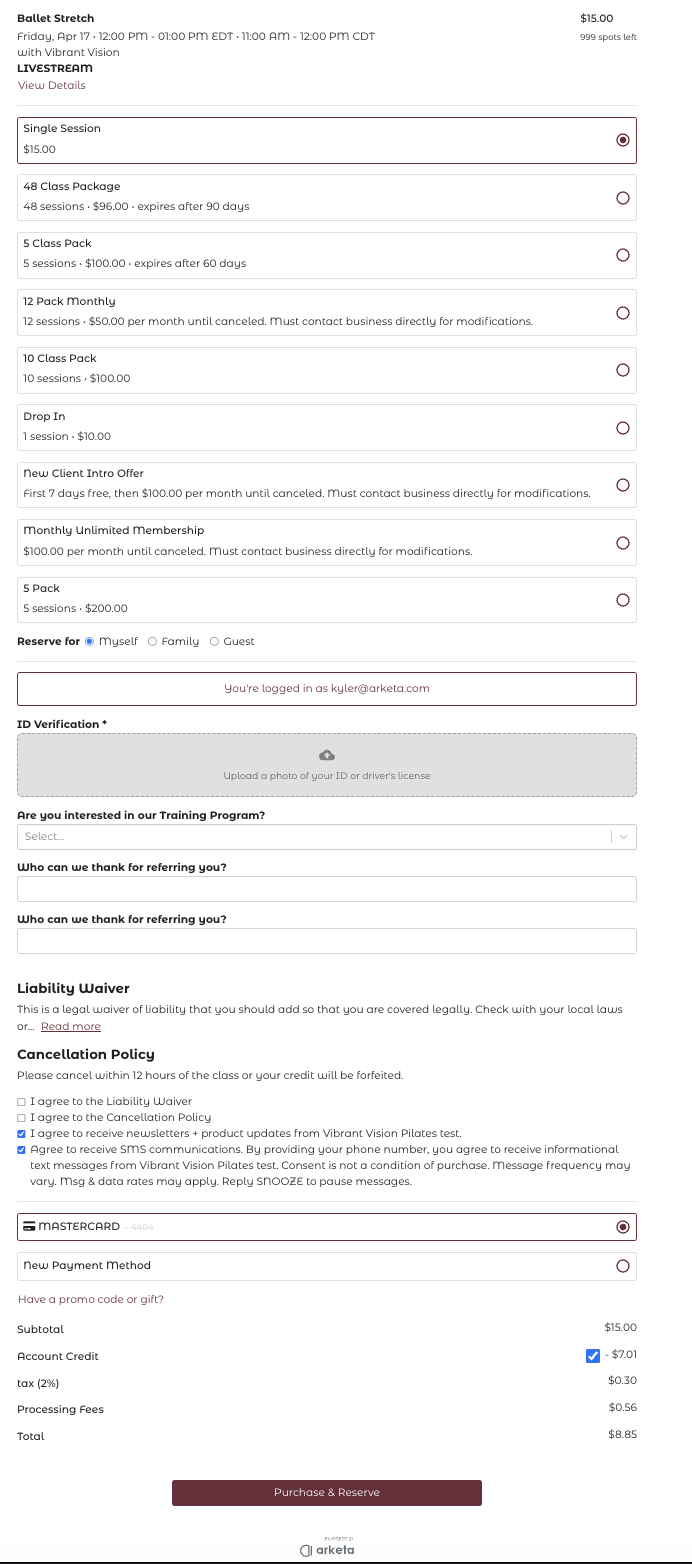
- Choose your payment option (drop-in, class pack, or membership)
- Complete checkout and you're booked — you'll receive a confirmation email
Book in the app
If your studio has a branded mobile app:
- Open the app and go to the Schedule tab
- Tap the class you want
- Tap Book and follow the prompts
What happens after you book
- You'll get a confirmation email with the class details
- For livestream classes, the email will include your Zoom or virtual class link
- For in-person classes, you'll see the location and room (if applicable)
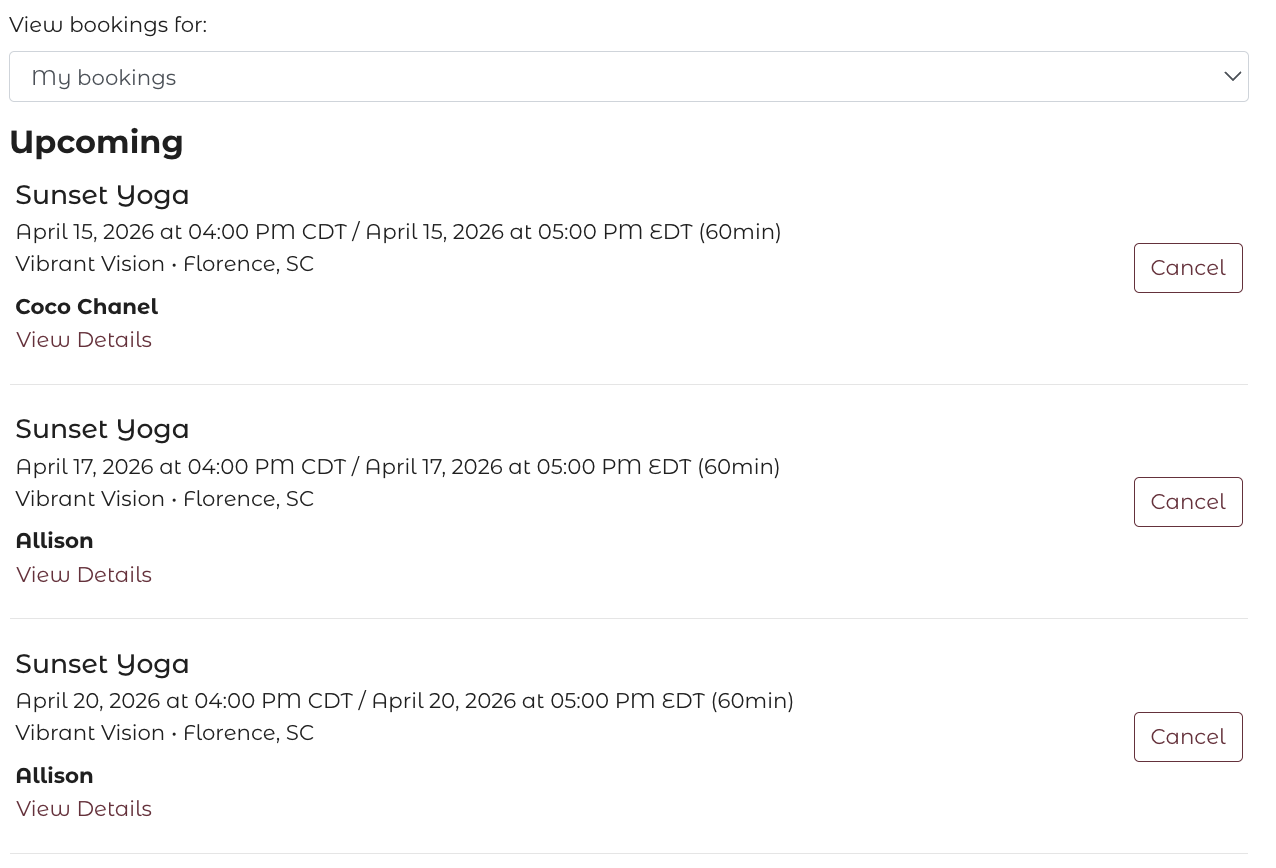
- You can view your upcoming bookings in your account under My Bookings
Finding your class link or location
You can find your class link (for livestream) or location (for in-person) in several places:
- On the confirmation screen right after you sign up — handy for last-minute bookings
- In your confirmation email, along with the option to add the class to your calendar
- In your reminder email, sent 45 minutes before class, which also includes the link or location
- In the bookings tab of your studio's booking page or website
- On the instructor's schedule — tap View to see your reservation details
If the class button says Sign-Up instead of showing your reservation, you'll need to log in first using the link in the upper right corner.
Will I get a class reminder?
Yes. You'll receive a reminder email 45 minutes before class, and it includes the link or location so you can join or arrive without hunting for the details.
Add the class to your calendar when you book for an extra reminder.
Canceling a booking
To cancel a class:
- Log in to your account
- Go to My Bookings (or Active Packages depending on your studio's setup)
- Find the booking and click Cancel
Whether you get a refund or credit back depends on the studio's cancellation policy. If you cancel outside the cancellation window, you may not receive a refund.
Cancellation is only available if the studio has enabled self-service cancellations. If you don't see a cancel button, contact the studio directly.
Joining the waitlist
If a class is full, look for a Join Waitlist button. You'll be added to the waitlist and notified by email if a spot opens up. The notification is first-come, first-served — act quickly if you get one.