
Community settings
Configure visibility, access, bulletin boards, and availability for your communities.
Visibility and access
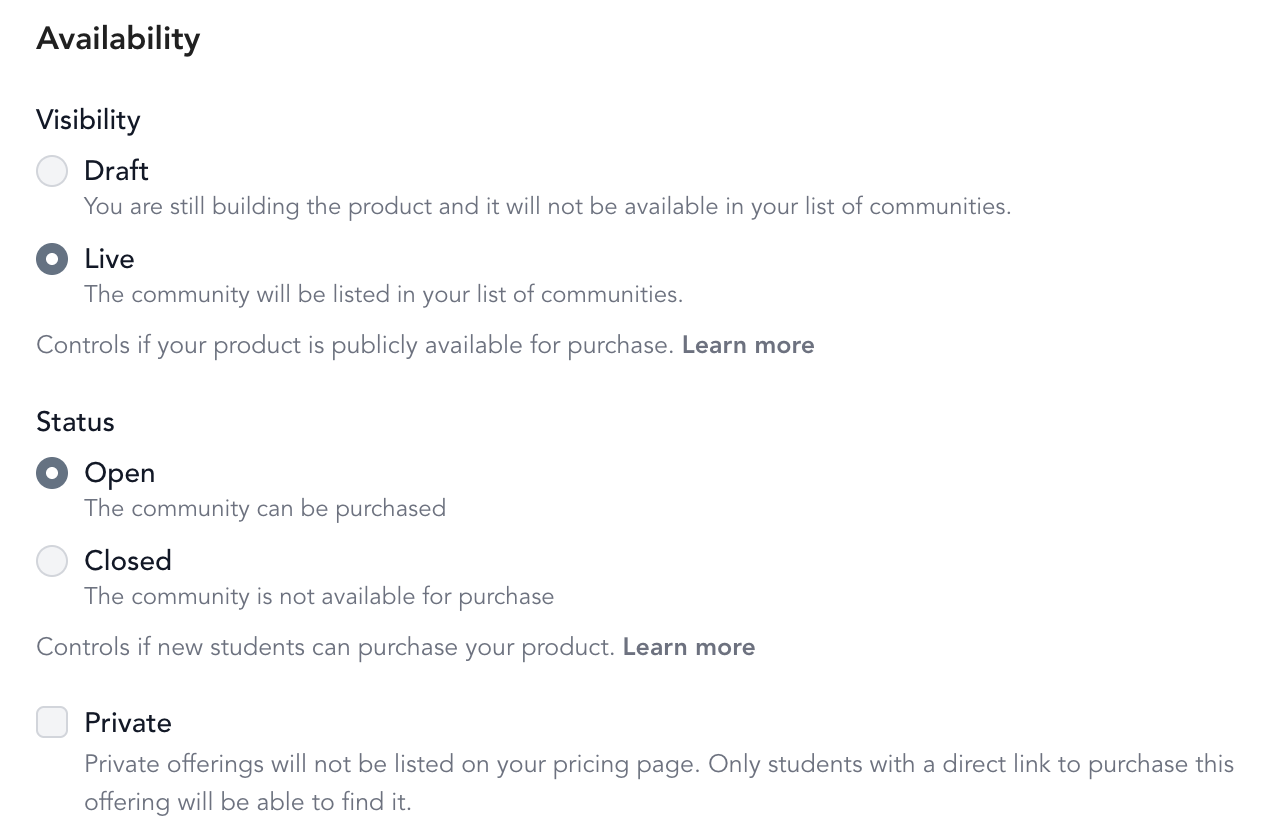
| Setting | What it does |
|---|---|
| Draft | Hidden from the widget — only visible via direct link. Use while building. |
| Live | Visible in the communities widget and purchasable via direct link. |
| Private | Not visible in the widget; accessible via direct link only. |
| Open | New purchases allowed. |
| Closed | No new purchases; existing members keep access. |
You can use Live + Closed to show a community in your widget without allowing new purchases — useful for building waitlist interest or for programs that run in cohorts.
Enable the community forum
In the community's Settings tab, check Turn on community forum to add a discussion space. Members can post and comment. You'll need to be added as a member to reply as yourself.
Bulletin boards
Bulletin boards let you post announcements, welcome messages, and updates to community members from your dashboard.
Go to Beyond Classes → Bulletin Board to create and manage posts.
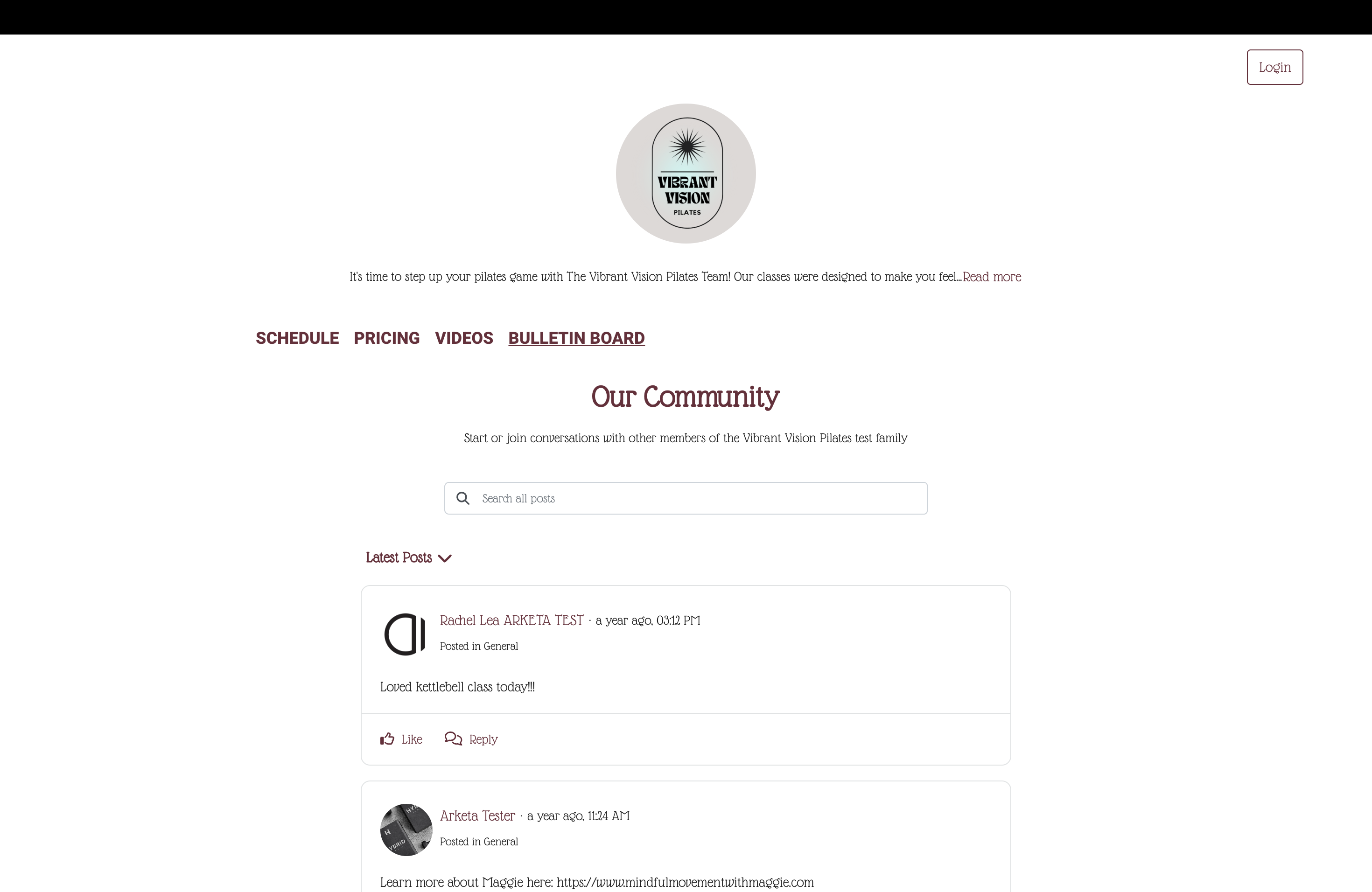
Bulletin boards appear inside the community and in the mobile app experience.
Bulletin boards are part of the custom mobile app product.
Content organization
Inside the community, organize resources into categories — Week 1, Week 2, Module 1, etc. Resources are sorted by category and ordered by creation date within each category.
Start and end dates
For time-limited communities (challenges, cohorts), set a start and end date in the community settings. Clients who purchase one-time get access only during that window.