
Client timelines
See a full chronological history of all communication and activity for a client.
The Timeline gives you a complete chronological log of everything that's happened with a client — emails sent, SMS messages, automation actions, notes, and check-ins — all in one view. It's your single source of truth for understanding your history with any client.
Access the timeline
- Go to Customers → Clients
- Click on a client's name to open their profile
- Click the Timeline tab
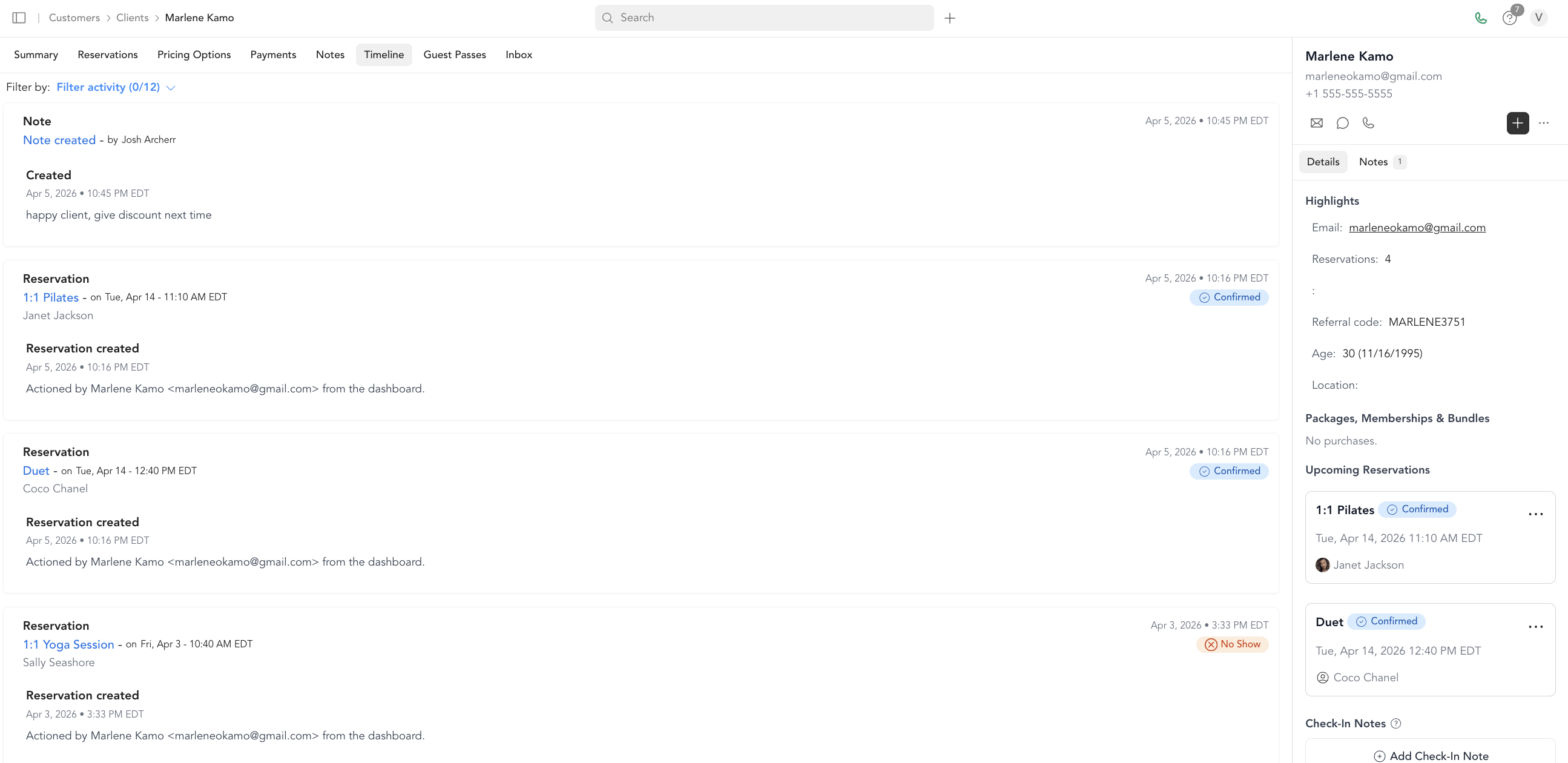
What shows in the timeline
| Item | Source |
|---|---|
| Transactional emails | Booking confirmations, receipts, cancellation notices (Settings → Transactional Messages) |
| SMS messages | Automated SMS from workflows; SMS from transactional message settings |
| Marketing emails | Emails sent via Automations or Broadcasts |
| Notes | Client notes, check-in notes, session notes |
| Check-in activity | Class check-ins logged from the check-in screen |
| Automation enrollments | When a client is enrolled in or completes an automation sequence |
| Booking history | Reservations made, modified, or cancelled |
SMS messages sent directly through your Inbox (two-way texting) are not currently included in the timeline.
How to use the timeline
Before outreach — Check the timeline to see the last time you emailed or texted a client before reaching out again. Avoid sending duplicate messages.
Following up on issues — If a client says they never received an email, the timeline shows exactly what was sent and when, which helps you troubleshoot.
Staff handoff — When a new instructor takes over a client, the timeline gives them context on the relationship history quickly.
Tracking automation effectiveness — See which automation sequences a client went through and what they received at each step.