
Calendar settings
Configure how your appointment calendar looks and behaves.
The appointment calendar is your main view for managing all scheduled sessions. You can customize how it displays and set preferences for how it works.
Access the calendar
Go to Classes → Appointments to open the appointment calendar. You can view it by day, week, or in a list format — toggle between views using the controls at the top.
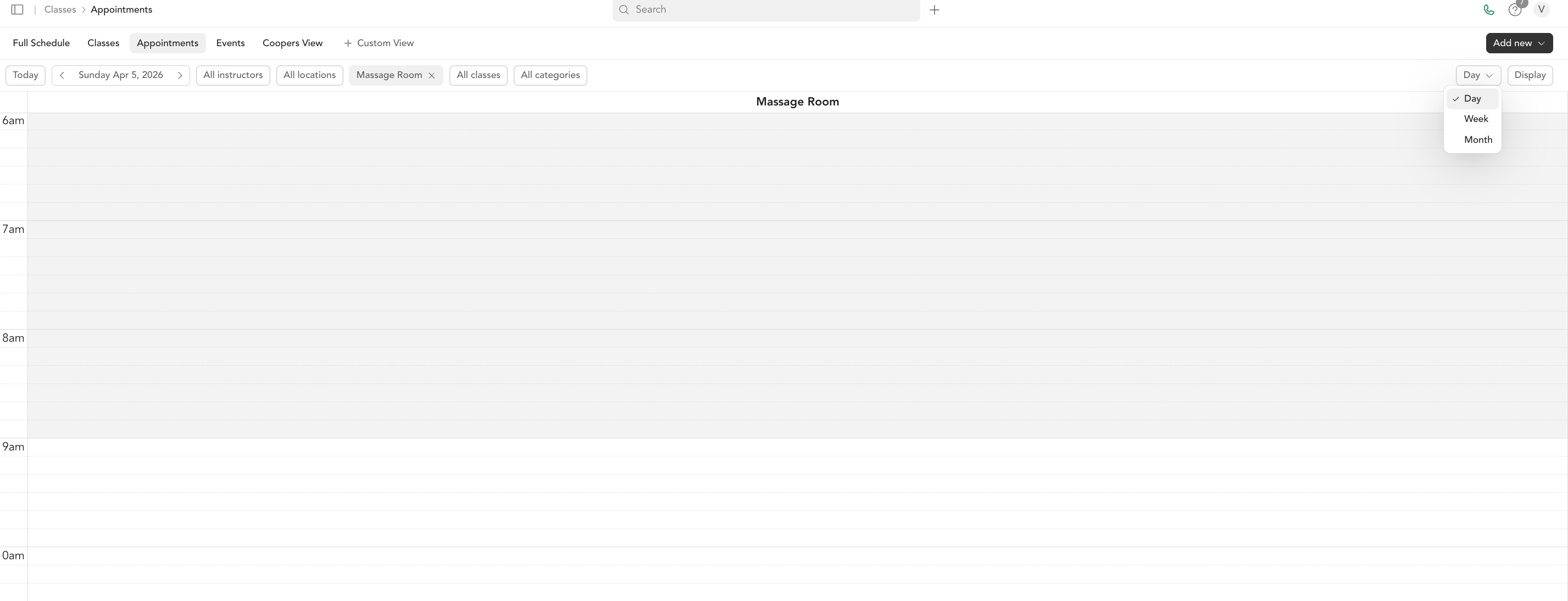
Calendar views
| View | Best for |
|---|---|
| Day | Detailed look at one day, especially useful for busy studios with multiple rooms |
| Week | Overview of the full week across all instructors or rooms |
| List | Text-based list of upcoming appointments — good for quick scanning |
Filtering the calendar
You can filter the calendar to show:
- A specific instructor — useful in studios with multiple staff members
- A specific room — shows only appointments in that room
- A specific service type — filter to one type of appointment

Room view
If you've set up rooms (Studio plans), the calendar can display columns for each room, making it easy to see which rooms are in use at any given time. Rooms appear left to right in the order they're configured in your location settings.
Display hours
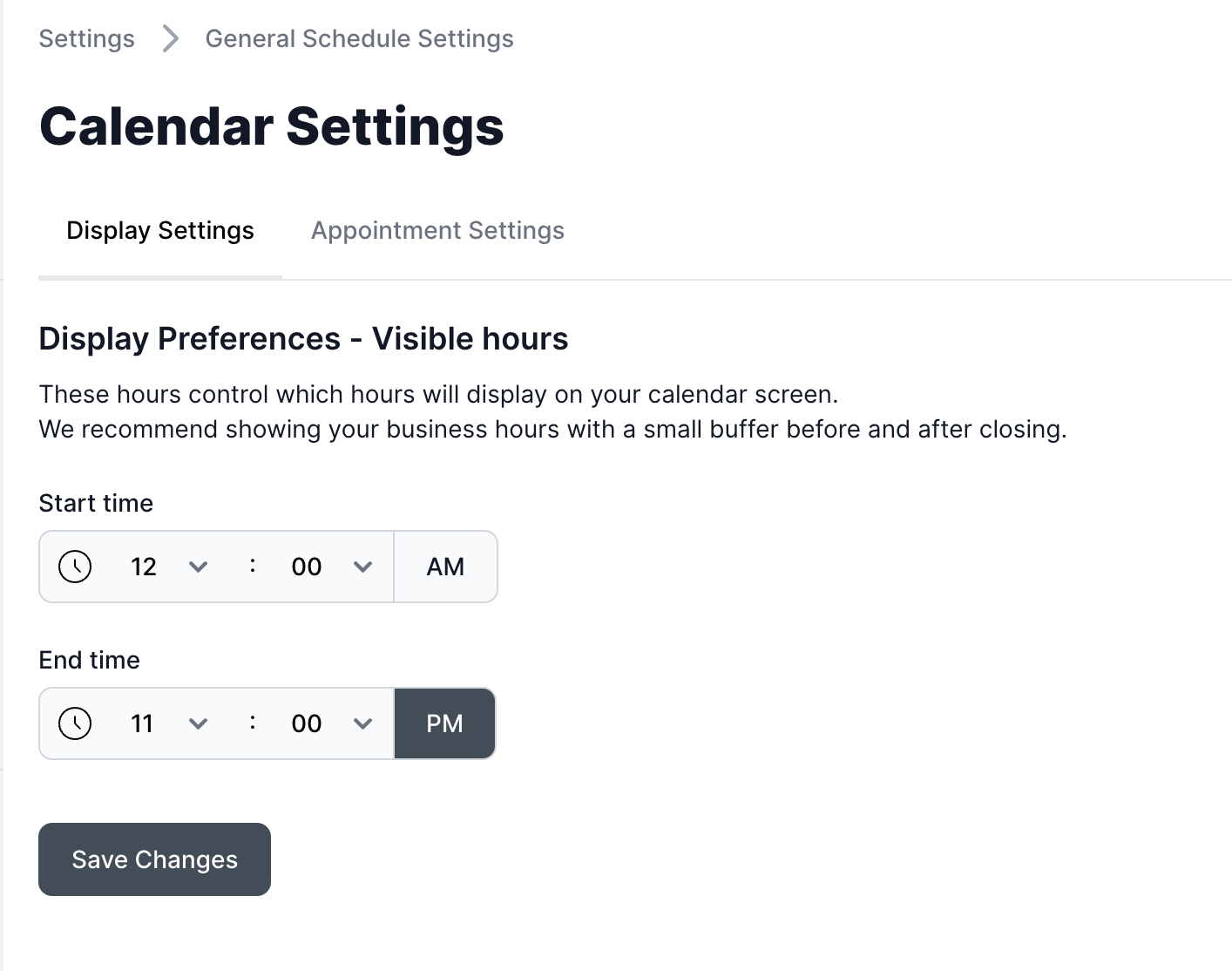
Your display settings control which hours appear on the calendar screen for scheduling appointments. To adjust them, go to Settings → General Schedule Settings → Display Settings, update the Start time and End time, then click Save Changes.
We recommend displaying your business hours plus an extra hour or two before opening and after closing for better flexibility and availability.
Start time increments
Your start time increment setting (configured in settings > general schedule settings > appointments) determines how granularly slots appear on the calendar. A 15-minute increment shows more availability than a 60-minute one.
Booking window on the calendar
The booking window settings from Settings → Booking Windows apply to appointments too — clients can only book as far in advance as your booking window allows. The private booking window has its own defaults (90 days open, 48-hour close by default).