
Calendar colors and icons
Understand what the colors and status indicators on the appointment calendar mean.
The appointment calendar uses colors and icons to communicate booking status, availability, and instructor status at a glance.
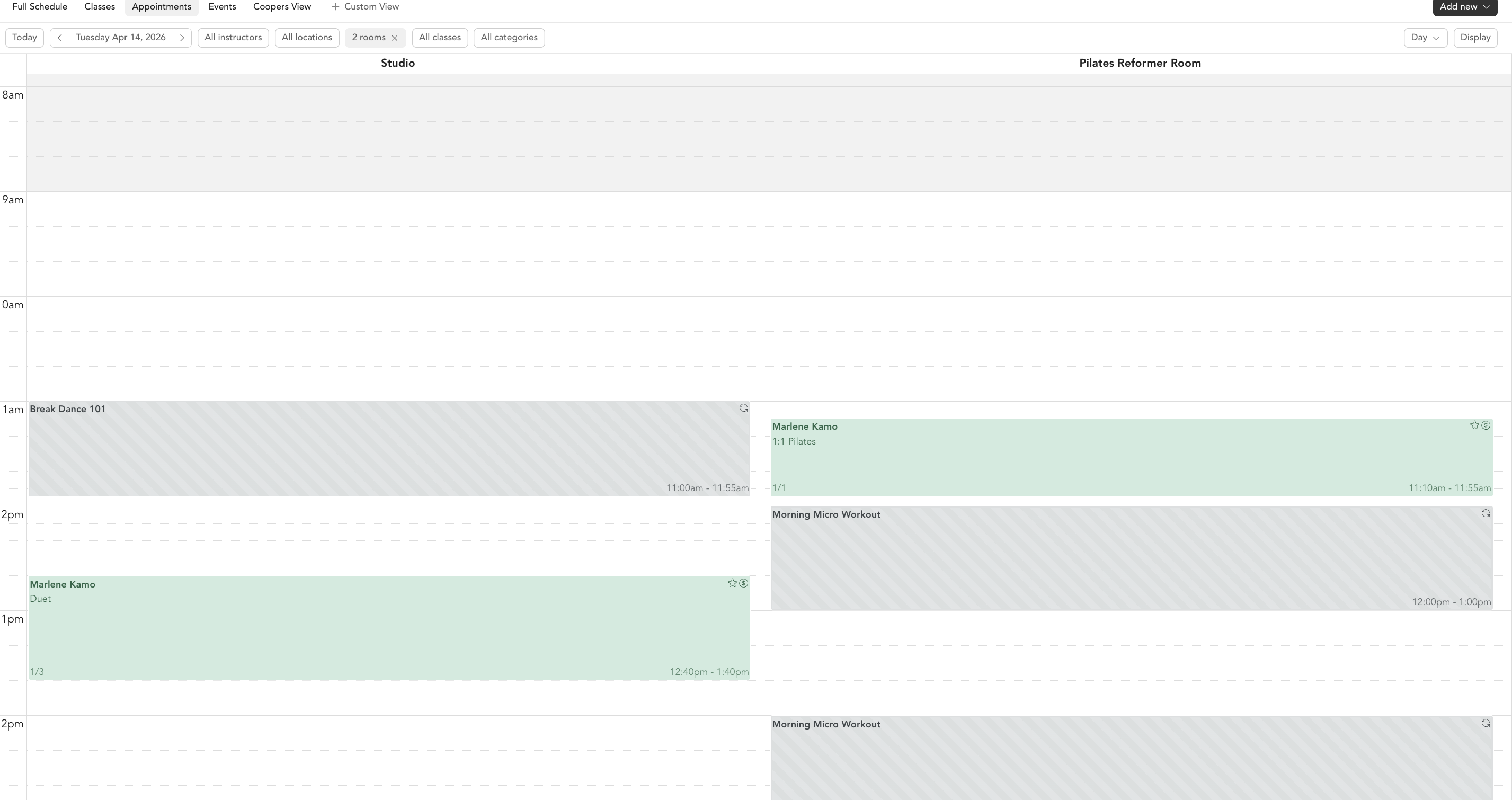
Background colors
| Color | Meaning |
|---|---|
| White background | Slot is available for booking |
| Grey background | Slot is unavailable — instructor is not available, or outside business hours |
When viewing by room, a grey column means no appointments are booked in that room for that time, but it could still be available.
Appointment status indicators
Appointments on the calendar show visual indicators based on their status:
| Indicator | Meaning |
|---|---|
| Confirmed | Appointment is booked and confirmed |
| No-show | Client didn't check in and was marked as a no-show |
| Late cancel | Cancellation was made inside the cancellation window |
| Completed | Appointment is done and client was checked in |
Service type colors
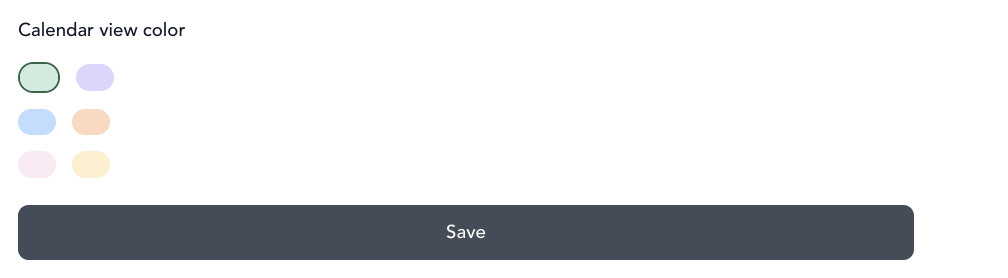
You can assign different colors to service types to make them visually distinct on the calendar — useful when you offer multiple types of appointments and want to quickly distinguish them.
To set a color for a service type:
- Go to Setup → Service Types
- Edit the service type
- Select a color from the color picker
- Save
The color will appear on all appointments of that service type on the calendar.
Icon meanings
- Lock icon — appointment is payment-pending or requires attention
- Note icon — a session note has been added to this appointment
- Person icon — indicates the client's check-in status
Was this helpful?