
Google Analytics and Google Ads
Connect Google Analytics, Tag Manager, and Google Ads to track reservations, purchases, and subscriptions on your Arketa booking pages.
Connect Google Analytics to Arketa to see how clients move through your booking pages — which pages they view, when they check out, and when they complete a purchase. You can also route the same data to Google Tag Manager and Google Ads to optimize your ad campaigns on real bookings and revenue.
What you'll need
- A Google Analytics account and its Tracking ID (required). This is the GA4 Measurement ID that starts with
G-— see How do I find my Google Analytics Tracking ID? below. - A Google Tag Manager account and GTM ID (optional). Only needed if you manage your tags through GTM.
- Your Google Ads / gtag conversion tag (optional). Needed only if you're tracking Google Ads conversions.
You'll set everything up in Settings → Integrations → Google, under Google Analytics & Tag Manager.
Connect Google Analytics
Open the integration
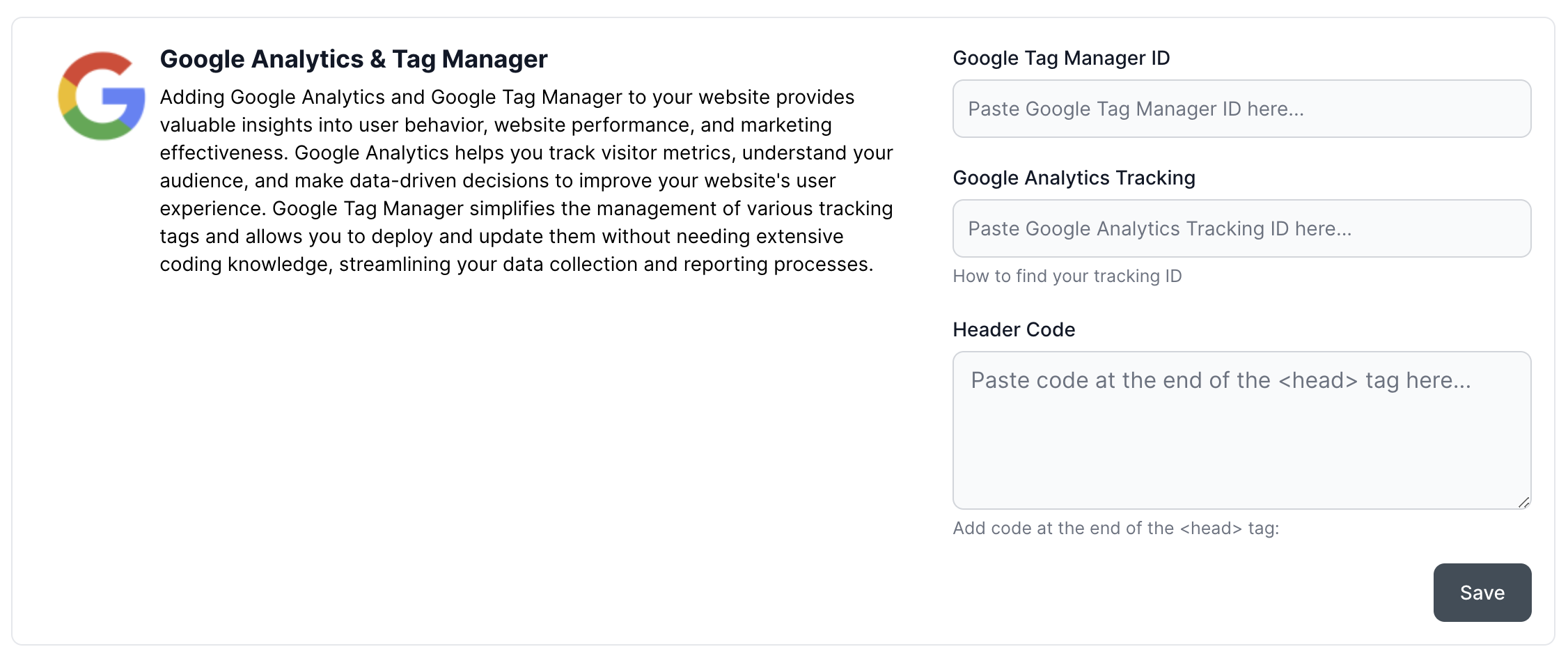
In Arketa, go to Settings → Integrations and click Google. Scroll to Google Analytics & Tag Manager.
Fill in the connection fields
Enter your details in the fields below. Only the Tracking ID is required.
| Field | Required | What it does |
|---|---|---|
| Google Tag Manager ID | No | Lets your site talk to Google Analytics through Google Tag Manager. Find it in your Google Tag Manager account. |
| Google Analytics Tracking | Yes | Identifies your site to Google Analytics so it can collect your data. You get this when you create a Google Analytics account. |
| Header Code | No | Paste the Google JavaScript tracking snippet here to track activity on your booking pages. |
Save the integration
Click Save to activate the integration.
Verify it's active
Confirm the integration shows as active. A status change or confirmation message may take a short time to appear.
Which events are tracked
Once connected, Arketa sends these events to Google Analytics as clients move through your booking pages:
| Event | What it means |
|---|---|
| Page View | A page was viewed inside Arketa. |
| Checkout | The checkout page was viewed inside Arketa. |
| Purchase | Someone completed a purchase, such as booking a class or buying a package. |
| Booking success | Someone successfully booked a class. |
| Subscribe | Someone subscribed to a subscription. |
For accounts created with Arketa after June 2023, our payment processor (Stripe) made a change that no longer tracks what was purchased or subscribed to at checkout. The Purchase and Subscribe events still fire, but the specific item details aren't passed. We plan to re-add this in the Google Analytics integration in the future.
Track Google Ads conversions
To track Google Ads conversions, use the same setup path as Google Analytics:
- Paste your Google Ads / gtag conversion tag into the Header Code field, or manage your tags through your Google Tag Manager container.
- Define the Purchase or Booking success event as your Google Ads conversion. This lets your campaigns optimize on real bookings and revenue instead of just clicks.
For Google Tag Manager (and Google Ads conversions) to fire reliably, do not embed Arketa pricing options directly on your website. Embedded checkouts run inside an iframe, which isolates the content for security and blocks your site's tracking scripts from seeing what happens inside — iframes don't pass the cookies Google uses to track conversions. Instead, link directly to the Arketa-hosted checkout page. See Why aren't my Google Tag Manager or Ads conversions firing? below.
Use your data
With the integration live, you can put the data to work:
- Track user behavior — see which pages clients visit and what actions they take.
- Monitor reservations, purchases, and subscriptions to gauge how your business is performing.
- Use the insights to make informed decisions and improve your website and offers.
Frequently asked questions
For other marketing and pixel integrations, see the Integrations overview.