
Client self-cancellation
Let clients cancel their own memberships online, or require them to contact you.
By default, clients contact you to cancel a membership. You can enable self-cancellation to let them do it themselves from their account — reducing admin work on your end while giving clients more autonomy.
Enable self-cancellation
- Go to Setup → Pricing Options
- Edit the membership
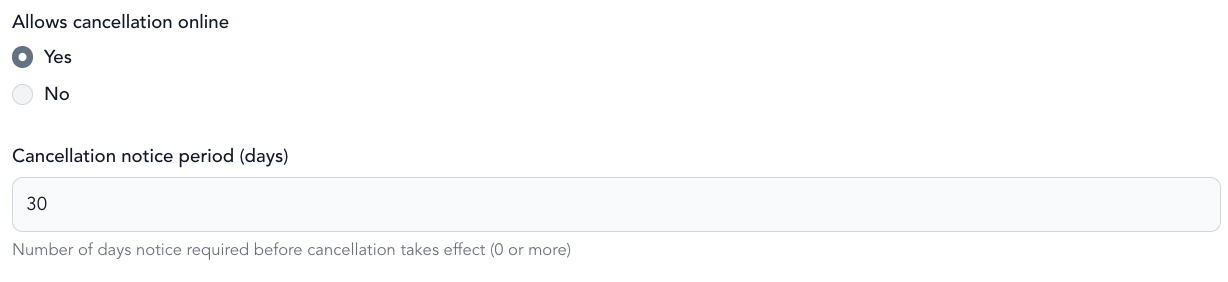
- Under the cancellation settings, enable Allow clients to cancel online
- Set a cancellation notice period (e.g., 30 days notice required)
- Save
How it works for clients
When self-cancellation is enabled, clients see a cancel option in their account under their active membership. They can initiate the cancellation, which may take effect immediately or at the end of their billing period depending on your settings.
If you require a notice period, the cancellation is scheduled — they'll keep access through the end of the notice period before it's fully cancelled.
Requiring notice vs. allowing immediate cancellation
Immediate cancellation — client cancels, access ends at the end of their current paid period. No notice required.
Notice period — client requests cancellation X days before it takes effect. If they're on a monthly plan and request cancellation with 30 days notice, they'll continue to be billed for the next cycle before cancellation completes.
Most studios use either immediate cancellation or a short notice period. Longer notice periods can increase churn if clients feel locked in and frustrated.
Disabling self-cancellation
If you prefer clients to call or message you to cancel (so you have a chance to retain them), leave self-cancellation off. This is the default. You'll handle all cancellations manually from the client's profile.