
Search, edit, and remove clients
Find clients in your list, update their profile details, or remove them from your account.
Search for a client
- Go to Customers → Clients
- Type their name or email in the search bar
- Click their name to open the profile

You can also filter the client list by tags, lifecycle stage, last visit date, active memberships, and more. Save frequently-used filtered views with Client View to access them quickly.
Edit a client profile
- Open the client's profile
- Click the three dots below their profile picture
- Select Edit Client
- Update any fields and save
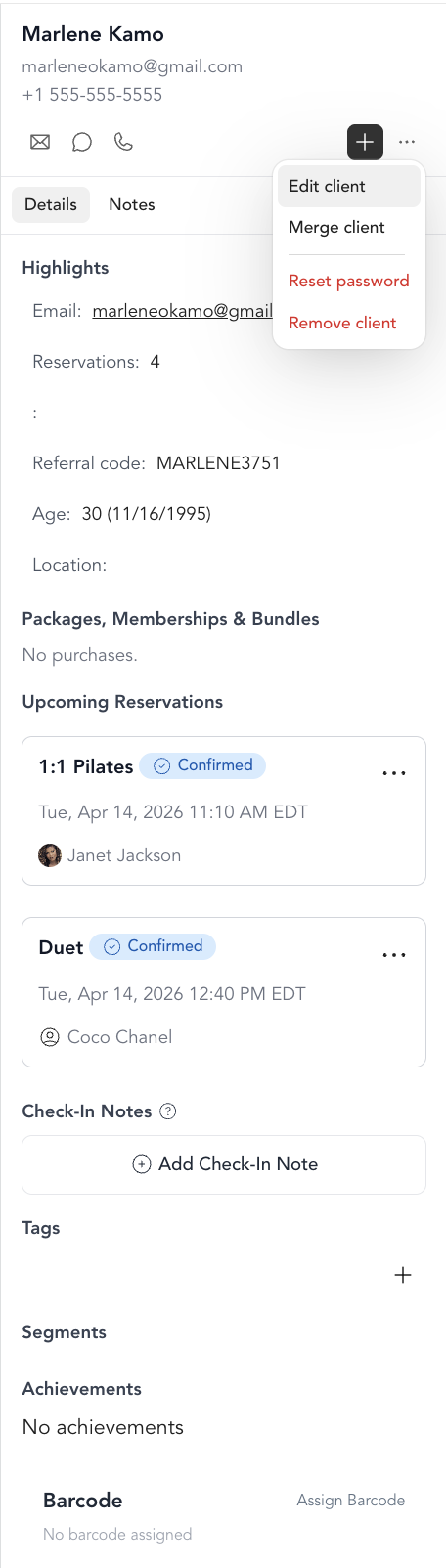
You can edit:
- Name, email, phone number
- Birthday
- Address
- Tags
- Emergency contact
- Original milestone count (how many classes they took before joining Arketa)
Email addresses are unique across Arketa. If you change a client's email to an address that already belongs to another Arketa account, the save fails with Email is already in use.
That almost always means the client has a duplicate profile — they booked once under a different address, or signed up themselves after you created a profile for them. Merge the two profiles instead of editing the email: see Merge client accounts →. Note that removing or archiving the duplicate does not free up its email address, because the Arketa account still exists. If you can't merge them, contact Arketa support.
Remove a client
To remove a client from your client list:
- Open the client's profile
- Click the three dots → Remove client
The client no longer appears in your client list. Their booking history and payment records may be retained for accounting purposes.
If you remove someone by mistake, you can undo it — open their profile and click Restore next to the Removed badge at the top.
Removing a client does not delete their Arketa account. An Arketa account belongs to the client, not to your studio, and the same account can be used at other studios — so removing someone from your list does not stop them from signing in. If a client wants their account deleted entirely, they need to request it themselves from Account → Delete account in the Arketa app, or by contacting Arketa support.
If you want to keep the profile in your list but prevent future bookings, consider adding a tag to flag the account instead.
Blocking a client from booking
There's no explicit "block" feature, but you can:
- Remove the client from your list
- Use booking requirements on specific classes (tag-based restrictions) to prevent certain clients from self-booking
- Note their profile and monitor manually
Contact support if you need help with a specific situation.